
Disabling a User
Billing Managers and Account Owners can disable a user from the Users settings.
Disabling a user immediately prevents them from signing in and may affect product licenses and subscription billing.
👤 Who can disable users?
Only users with the following roles can disable accounts:
- 💳 Billing Manager
- 👑 Account Owner
👤 Standard Users do not have permission to disable accounts.
🧭 How to Disable a User
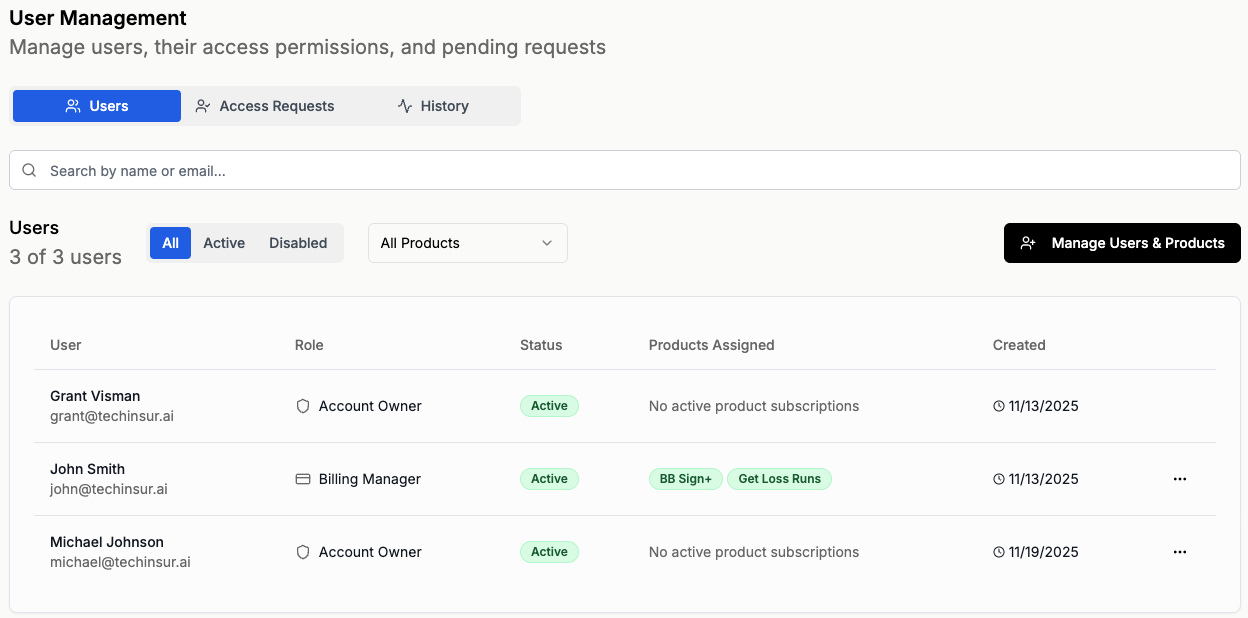
Step 1: Open User Settings
- Click the Settings ⚙️ icon in the bottom-left corner
- You will automatically land on the Users tab
Step 2: Select Disable
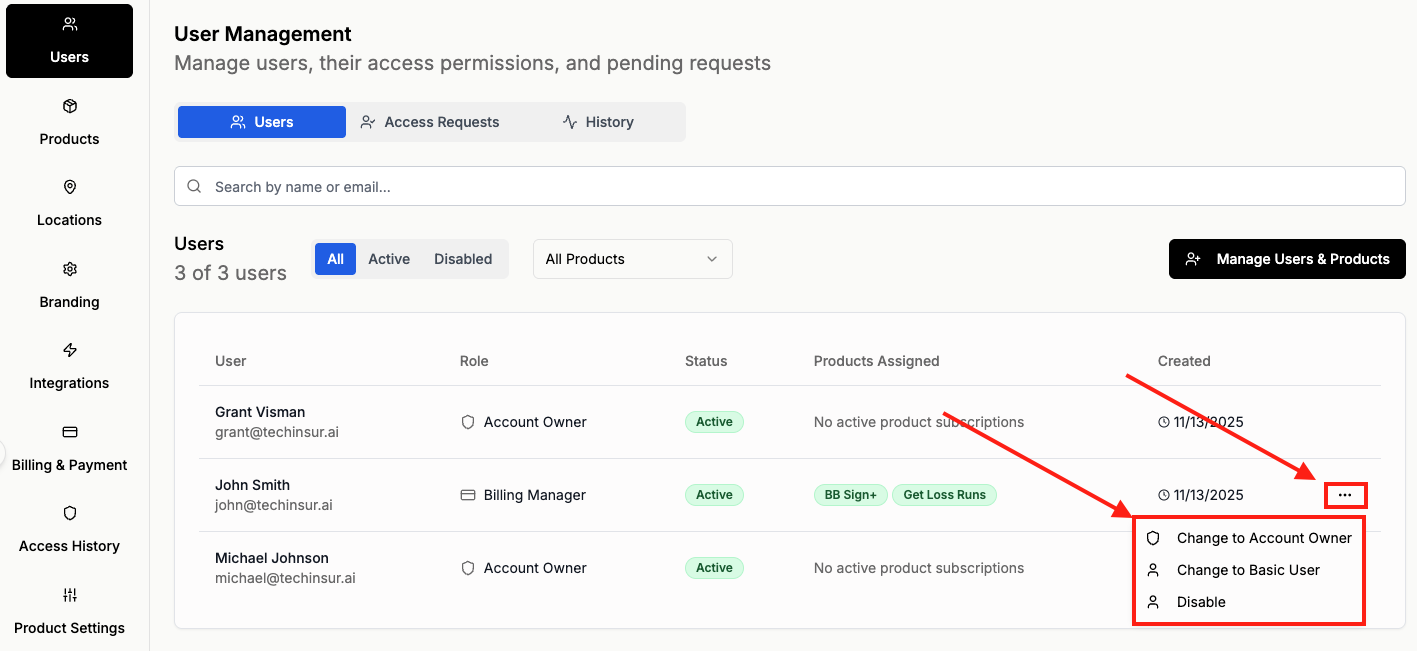
- Locate the user you want to disable
- Click the three-dot (⋯) menu next to their name
- Select Disable
Step 3: Review Subscription Impact (First Confirmation Screen)
When disabling a user, you may see a notice such as:
⚠️ Subscription Cancellation with Run-off Period
If this user holds the last active seat for one or more products:
- The seat will be removed from all products
- Access will continue until the end of the current billing period
- Licenses will be canceled after the billing period ends
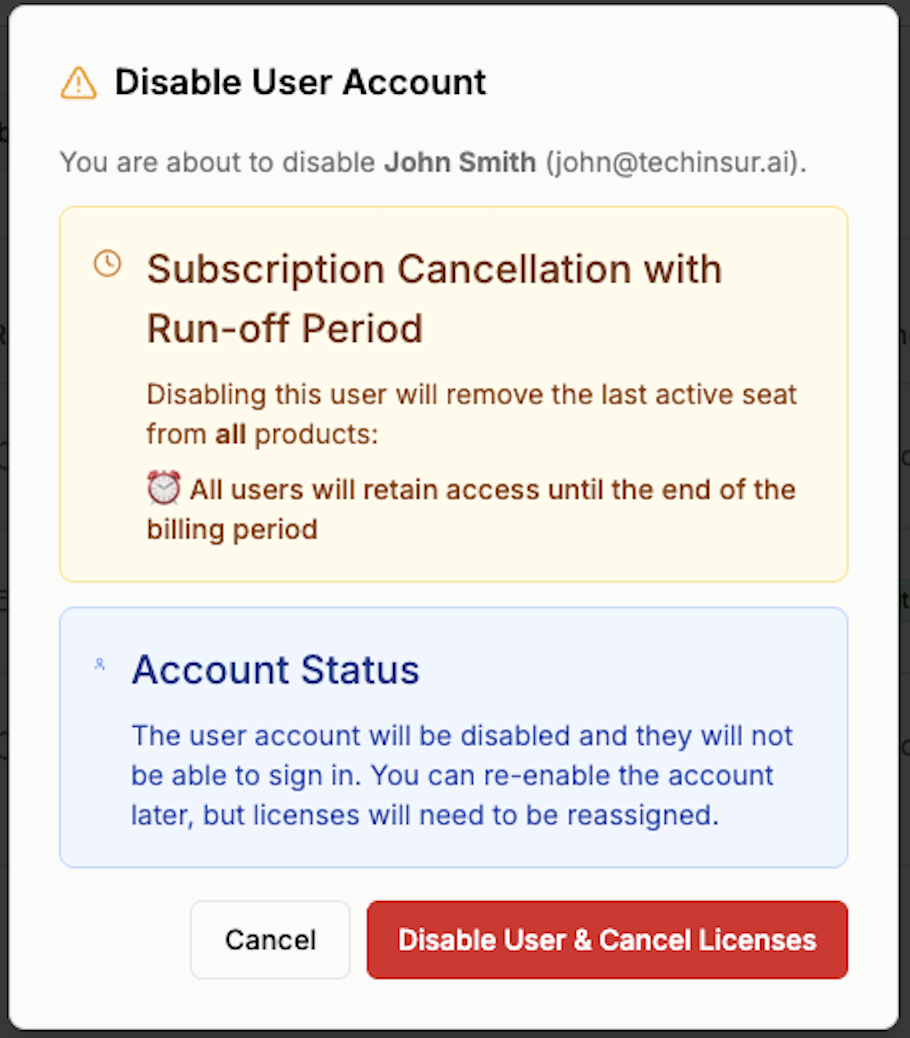
Carefully review the impact before proceeding.
Click Disable User & Cancel Licenses to continue.
Step 4: Confirm Account Status (Final Confirmation)
You will then see a confirmation explaining:
- The user account will be disabled
- They will no longer be able to sign in
- The account can be re-enabled later
- Licenses will need to be reassigned if access is restored
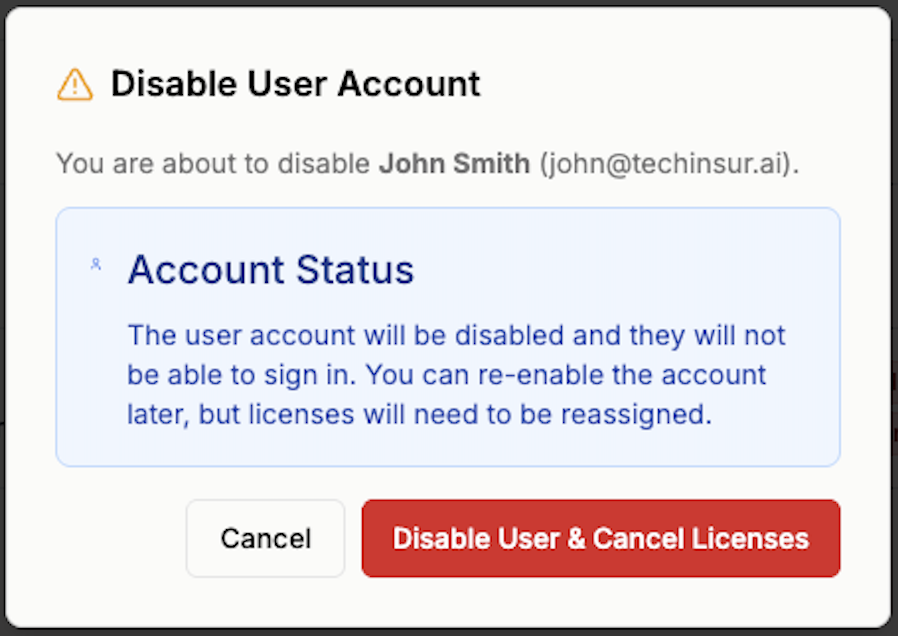
Click Disable User & Cancel Licenses to complete the process.
💳 What Happens to Product Licenses?
If the user held the last active seat:
- The seat is removed
- Billing adjustments occur at the end of the current billing cycle
- Access continues through the run-off period
If other users still hold seats:
- Only this user’s access is revoked
- Other users remain unaffected
🔐 What Happens After Disabling?
For the User
- They can no longer sign in
- They are notified about their account status
For Billing Managers and Account Owners
- The user appears as disabled in the Users list
- Licenses may need to be reassigned
- Billing changes can be reviewed in the subscription summary
♻️ Re-Enabling a User
If needed, you can restore access:
- Go to Settings → Users
- Locate the disabled user
- Select Re-enable
- Reassign product licenses
- Apply changes
Access will be restored immediately once licenses are reassigned.
💡 Best Practices
- Disable users who permanently leave your organization
- Review product license allocation after disabling
- Be aware of subscription changes when removing the final seat
- Limit Account Owner access to essential administrators